

How it works
- A visitor browses your public partner directory and opens a partner’s profile page.
- The visitor fills out the contact form with their information (name, email, company, etc.).
- Upon submission, Kiflo automatically creates a new lead record.
- The lead is associated with the partner whose profile the visitor was viewing.
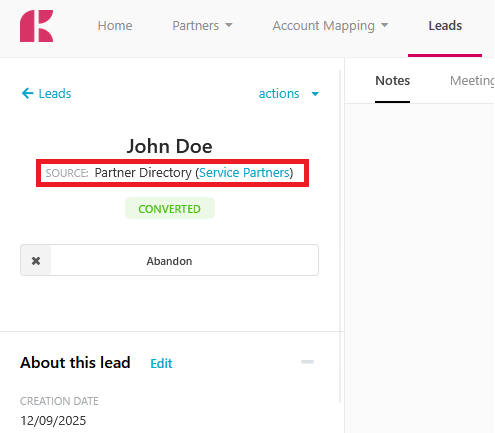
- The lead appears on your Leads page with the source set to the originating directory.
- The lead is shared with the partner, and the partner is notified.
 The fields shown on the contact form are configurable from the Contact form tab of your directory settings under Manage > Partner Directories.
See: How to configure the contact form on directory profile pages?
The fields shown on the contact form are configurable from the Contact form tab of your directory settings under Manage > Partner Directories.
See: How to configure the contact form on directory profile pages?
Finding partner directory leads
Leads generated from your partner directory are identified by the Source column on the Leads page.- Navigate to the Leads page.
- Look at the Source column for each lead.
- Leads from a partner directory will display the source as Partner Directory ({Directory Name}).
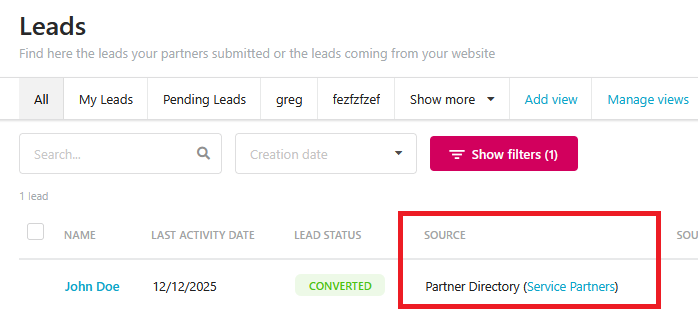
Filtering leads by source directory
To view only leads that came from a specific partner directory, use the Source directory filter.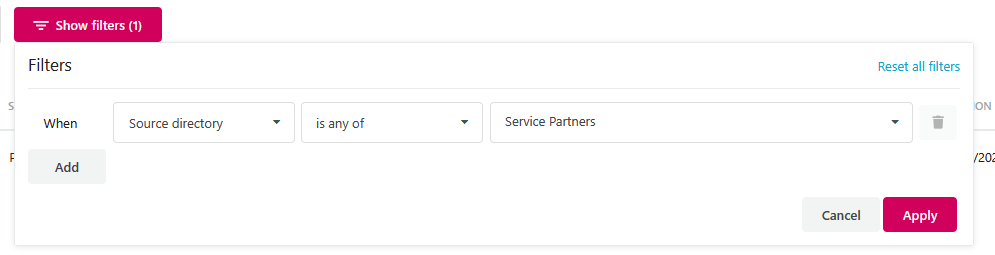
Step 1: Open the filters panel
- Go to the Leads page.
- Click the Show filters button.
Step 2: Add the Source directory filter
- Click on the property dropdown to add a new filter.
- Select Source directory from the list of available properties.
Step 3: Choose your filter criteria
The following operators are available for the Source directory filter:Step 4: Apply the filter
- After selecting your operator and values, click Apply.
- The Leads list will update to show only the leads matching your filter criteria.
Tips
- Combine filters: You can combine the Source directory filter with other filters (such as date range, status, or assigned partner) to narrow down your results further.
- Use “is not empty” for reporting: To get a quick count of all leads generated across all your partner directories, use the is not empty operator. This is useful for measuring the overall lead generation impact of all your directories.
- Configure the contact form: To control which fields visitors must fill out, go to Manage > Partner Directories, open your directory, and select the Contact form tab. You can add fields and reorder them.