

Prerequisites
- You must have the Partner Directory addon enabled on your Kiflo account.
- You must have an existing partner directory. Directories are managed from Manage > Partner Directories.
Inviting partners to a directory
- Navigate to Manage > Partner Directories.
- Click on the directory you want to add partners to.
- Select the Partner profiles tab.
- Click the Invite partners button in the top-right corner.
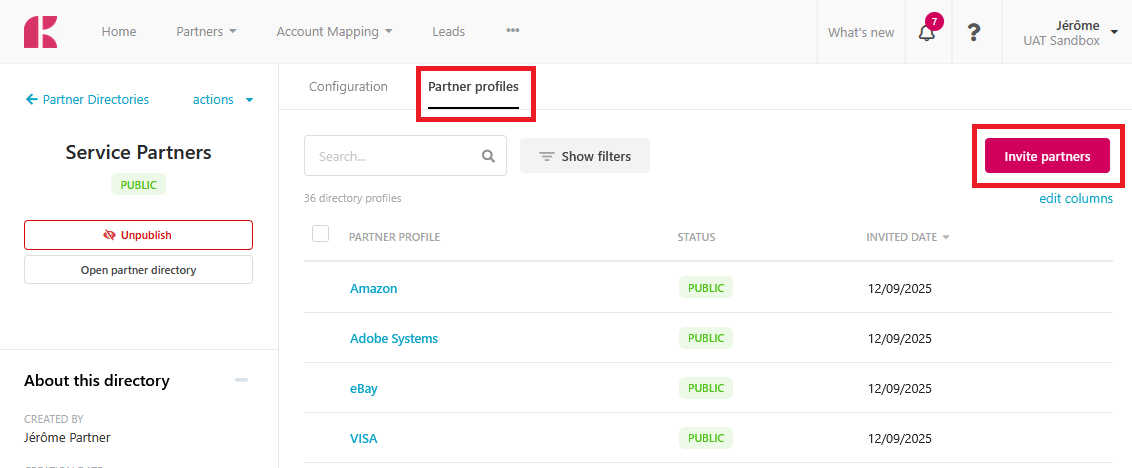 A modal will appear with three invitation methods. Choose the one that best fits your needs.
Method 1: Invite by Partner(s)
Use this method when you want to add specific, individual partners to your directory.- In the invitation modal, select By Partner(s).
- Search for and select the partners you want to invite.
- Confirm your selection.
Method 2: Invite by Program(s)
Use this method to invite all partners enrolled in one or more program levels at once.- In the invitation modal, select By Program(s).
- Select the program levels whose partners you want to invite.
- Confirm your selection.
Method 3: Invite by Group(s)
Use this method to invite all partners belonging to one or more groups.- In the invitation modal, select By Group(s).
- Select the groups whose partners you want to invite.
- Confirm your selection.
Preview invited partners
Before you send invitations, you can preview the list of partners who will receive the email.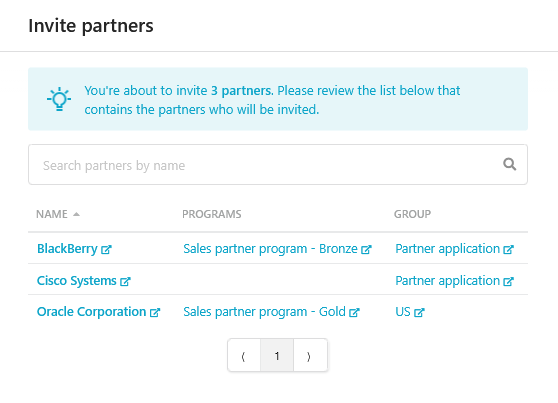 Click Next to go to the last step.
Select the invitation email template
Choose the email template used to send invitations to the selected partners. Kiflo provides a default template: “Partner directory invitation”: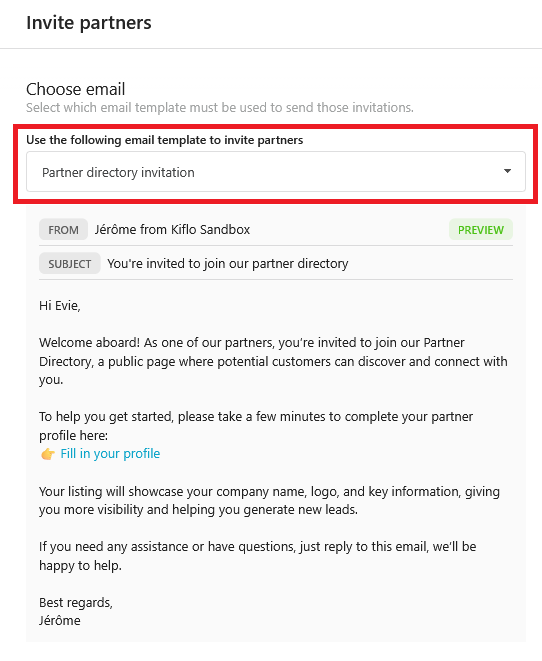 Finally, click the Invite button to send invitations. You’re done!
What happens after inviting partners
Once invited, partners appear in the listing on the Partner profiles tab. They receive an email inviting them to fill in their profile from their partner portal. Their profiles will be visible on the public directory once published (when the status is set to Public).Customizing partner profiles
After a partner has been invited, you can see and edit their profile:- On the Partner profiles tab, click on a partner to open their profile.
- You can edit the following fields:
- Company name
- Website
- Logo
- Headline
- Descriptions
- Filter values (based on the filters configured in the Filters tab)
- All sections defined in the profile page layout